What Is Document Formatting and Why It Matters
What is document formatting? Learn the layers, file types, accessibility standards and examples that make documents work for busy readers.
Lifestyle12 min read
Document formatting is the structured presentation of content so that a document is readable, navigable, consistent and suited to its intended use. You're ten minutes from a meeting, opening a report someone sent late, and you can't tell what's a heading, where the recommendation sits, or which numbers matter. The writing may be sound, but you're spending your prep time hunting instead of deciding. That's a formatting failure, and it's fixable with a system you'll use every day once you see it clearly.
What Document Formatting Means in Plain Terms
Think of a document like a building. The content is the rooms and walls. The formatting is the floor plan, the signage, and the width of the corridors, the parts that let a visitor walk in and find the exit without asking anyone for directions.
Formatting isn't decoration added at the end. It's the layer that tells a reader what to read first, what can be skimmed, and where to return later. When you ask what is document formatting in practical terms, you're asking how a file guides attention from the first line to the required action.
The illustration below shows formatting as structure, not surface styling.

The Five Layers From Smallest to Largest
Every document you touch has five layers working at once. Few people notice the first one, which is why files drift into inconsistency even when they look tidy at a glance.
The five layers of document formatting
Layer | What It Controls | Typical Settings | Effect on the Reader |
|---|---|---|---|
Character | Individual letters and words | Typeface, size, bold, italic, color | Signals emphasis, too many styles compete for attention |
Paragraph | Blocks of text | Alignment, line spacing, indentation, space before and after | Sets readability and rhythm |
Document structure | Hierarchy of content | Heading levels, numbered and bulleted lists, tables, captions | Enables scanning, navigation and skipping |
Page layout | The physical or PDF page | Paper size (US Letter or A4), margins (1 inch common), headers, footers, page numbers | Controls print fit and where readers find context |
Metadata and tags | Information behind the visible page | Document title, language, alt text for images, PDF tags | Drives search, screen readers and archiving |
Notice how the layers build on each other. A bold word means little if paragraph spacing is cramped. Clear paragraphs still bury the point if there's no heading structure above them.
Defaults are where inconsistency starts, because nobody chose them for this document or this reader.
Run a quick self-audit on the last document you sent. Check each layer and mark whether you set it on purpose or accepted whatever the file already had. You'll usually find that character choices were deliberate and the other four layers were inherited, which explains why two reports from the same team rarely look like relatives.
Why Formatting Affects Speed, Approvals and Errors
A manager opens a vendor memo between meetings. The recommendation sits deep in a paragraph, so they search, miss it, and ask for clarification. A decision that could take one read turns into extra messages and another review.
Consistent formatting works like quality control: it gives readers a quicker route from the question to the decision and helps teams reuse templates for reports, proposals, meeting materials, and client communications. Word's history includes milestones in document formatting, as described in Microsoft's history of Word and its formatting milestones. The practical test is what the reader can find, not when a particular feature appeared.
The 30-Second Test
Can a busy reader locate the decision, the key number, and the deadline within 30 seconds? This test connects everyday writing choices to how quickly someone can act. If those details are buried, approvals slow down, even when the file looks polished.
Inconsistent formatting can also cause errors. If a total appears in different styles or places, a reviewer may overlook a mismatch. If an outdated version looks like the current one, someone may send the wrong figures or miss a deadline. Clear labels and a consistent layout make those checks easier.
A well-formatted document helps readers find the information they need, verify it, and decide without unnecessary back-and-forth. It is operational quality control, not decoration.
How Styles and Heading Structure Make Formatting Work
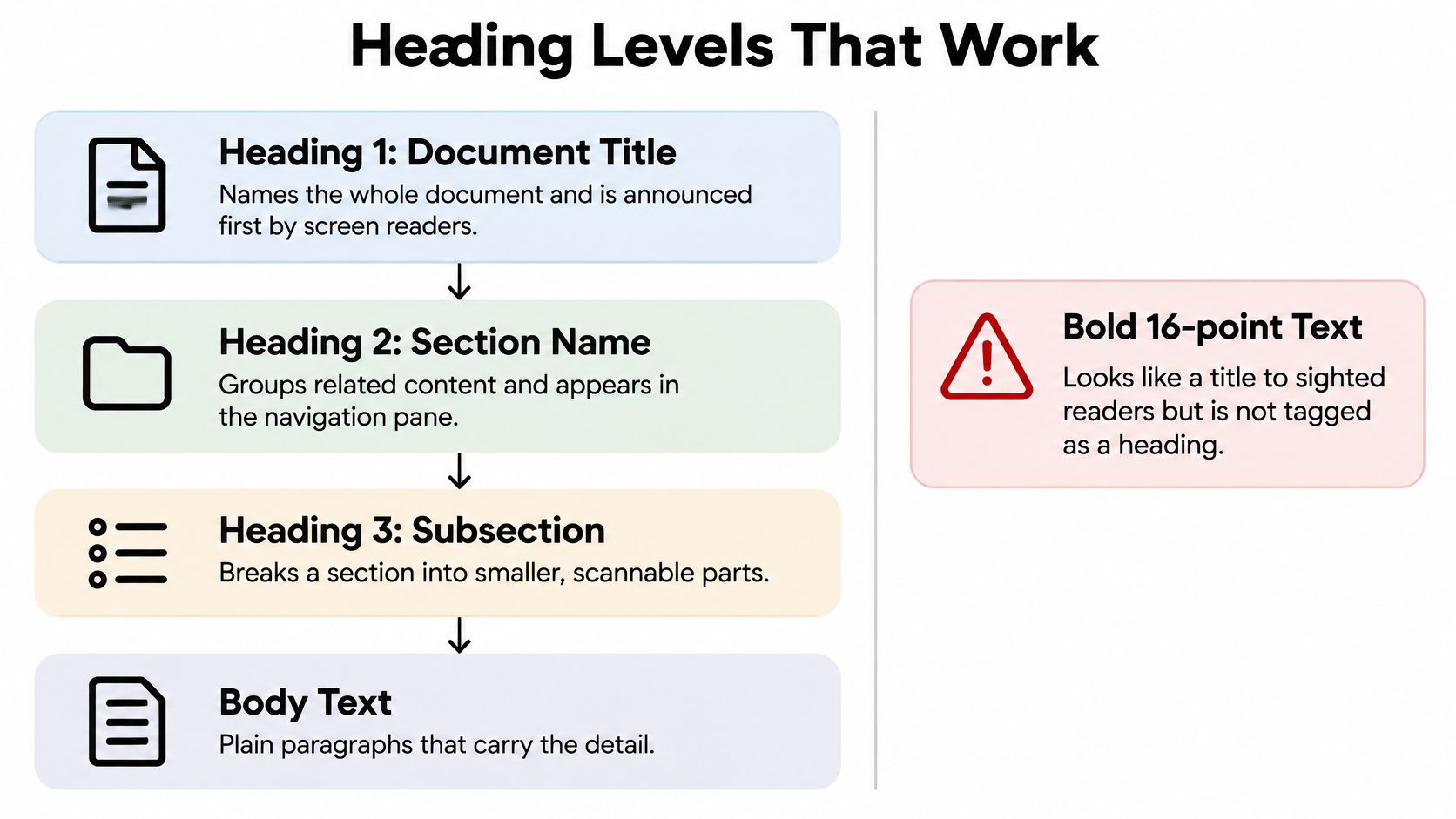
Bold 16-point text at the top of a page looks like a title. To a screen reader, a navigation pane, or a PDF tag tree, it's just large body text. That's the gap between visual formatting and semantic formatting, and it's where most formatting problems start without anyone noticing.
Assistive technologies can't reliably infer a heading from appearance unless a built-in heading style or equivalent tag is applied, a distinction set out in Microsoft's guidance on making Word documents accessible. Styles solve this because a style stores font, size, color, spacing, and outline level in one place. Change the style once, and every instance updates together.
The diagram below shows how real heading levels stack, and why bold text sits outside that structure.
A Hierarchy Readers Can Navigate
Use one Heading 1 for the document title. Use Heading 2 for major sections such as Recommendation, Pricing, and Next Steps, then Heading 3 for subsections beneath them. Readers skim that ladder in seconds, and screen reader users can list the same headings and jump straight to the part they need.
Styles also pay off during revisions. Changing every Heading 2 from 12-point blue to 14-point black takes one edit to the style rather than a manual pass through dozens of headings, the central benefit described in Microsoft's guide to customizing or creating styles. Manual formatting drifts a little with every edit until no two headings match.
The short video below walks through applying styles as you draft.
Work in three steps. First, define your styles before drafting. Second, apply them as you write, never skipping a level such as jumping from Heading 2 to Heading 4. Third, open the navigation pane before sending and confirm the outline reads like a sensible contents list. If the pane looks messy, your reader's experience will be too.
Standard File Types and What Each One Preserves
Follow one rule and most format problems disappear. Draft in an editable format, and deliver in a fixed format only after checking it. DOCX suits most business writing because it keeps styles, comments, and tracked changes while collaborators work.
The table below compares common formats on editability, layout survival, and best use. A recurring deliverable such as a business travel itinerary template shows why this matters, since the working file and the traveler's final copy serve different jobs.
Common document formats and what they preserve
Format | Stays Editable | Layout Survives Sharing | Best Use |
|---|---|---|---|
DOCX (Microsoft Word) | Yes, with styles and tracked changes | Partly, fonts and page breaks can shift | Drafting and collaborative editing |
PDF via application export (tagged) | No | Yes, with headings and tags kept | Final distribution, submissions, client deliverables |
PDF via print-to-PDF | No | Visually yes, tags often lost | Quick visual copy only, not for accessible distribution |
ODT (OpenDocument, ISO/IEC 26300:2006) | Yes | Yes across ODF-compliant applications | Archiving and vendor-neutral exchange |
RTF | Partly | Limited, styling simplified | Legacy exchange between word processors |
TXT or Markdown | Yes, as plain text | No styling carried | Content feeding websites, databases or version control |
The Export Path Trap
Watch the route you take to PDF. Harvard's accessibility guidance on creating accessible PDFs warns that Print to PDF settings remove tags and accessibility formatting, so the same Word file can produce a navigable PDF through proper export or a flattened one through a print driver. The pages look identical. Only one of them works for a screen reader user.
For long-term access, ODT deserves attention. The Library of Congress format description for OpenDocument records ODF 1.0 in May 2005 and its publication as ISO/IEC 26300:2006, an XML-based, vendor-neutral standard built for exchange and preservation. Keep your editable source, export the final PDF from it, and name the file with a version and date so nobody edits the wrong copy.
Accessibility and Standards Behind Good Formatting
Accessibility and speed are the same project. Tagged headings let every reader jump between sections instead of reading each paragraph in order, and the W3C technique for using headings in PDF documents describes this as a significant speed improvement for people who would otherwise access content more slowly.
Three levers appear in most checklists. Headings must appear as H1 to H6 tags in the PDF structure tree, heading levels must not be skipped, and text needs sufficient contrast, specifically 4.5:1 for regular text and 3:1 for large text. The Social Security Administration PDF compliance checklist makes the same heading point plainly, bold or enlarged text alone isn't enough for assistive technology navigation.
Formatting standards and how to check them
Reference Point | What It Requires | How to Check |
|---|---|---|
PDF heading tags | Headings represented as H1 to H6 in the tag tree, not just large bold text | Open the tags panel in the PDF reader and read the tree |
Heading hierarchy | Real heading styles with no skipped levels, such as H2 jumping to H4 | Navigation pane shows one top-level title and nested sections beneath it |
Text contrast | 4.5:1 for regular text, 3:1 for large text | Run colored text and background through a contrast checker |
Alt text | A description for every meaningful image, decorative images marked as such | Accessibility Checker in Word flags missing alt text |
Real list structures | Bullets and numbering applied through list tools | Select a list and confirm the list tools, not typed symbols, control it |
ODF standard | Open document format standardized as ISO/IEC 26300:2006 | Export to ODT, reopen in a second application and confirm headings survive |
Your Three-Minute Check Before Sending
- Open the structure view. Use the navigation pane in Word or the tags panel in the PDF and confirm one top-level title with logical nesting beneath it.
- Run the Accessibility Checker. Fix flagged items such as missing alt text, and replace typed hyphens with real list structures and vague link labels with descriptive text.
- Test contrast. Check colored headings and call-out boxes, since brand colors are where contrast most often fails.
Before and After Formatting in Professional Documents
It's Thursday, and a memo is going to the board. The decision sits in the fourth paragraph, the figures run inline inside long sentences, and there are no page numbers. Board members read the same paragraph twice, ask where the total is, and the meeting starts with clarification instead of discussion.
The photo below captures the setting where that kind of friction is most expensive.
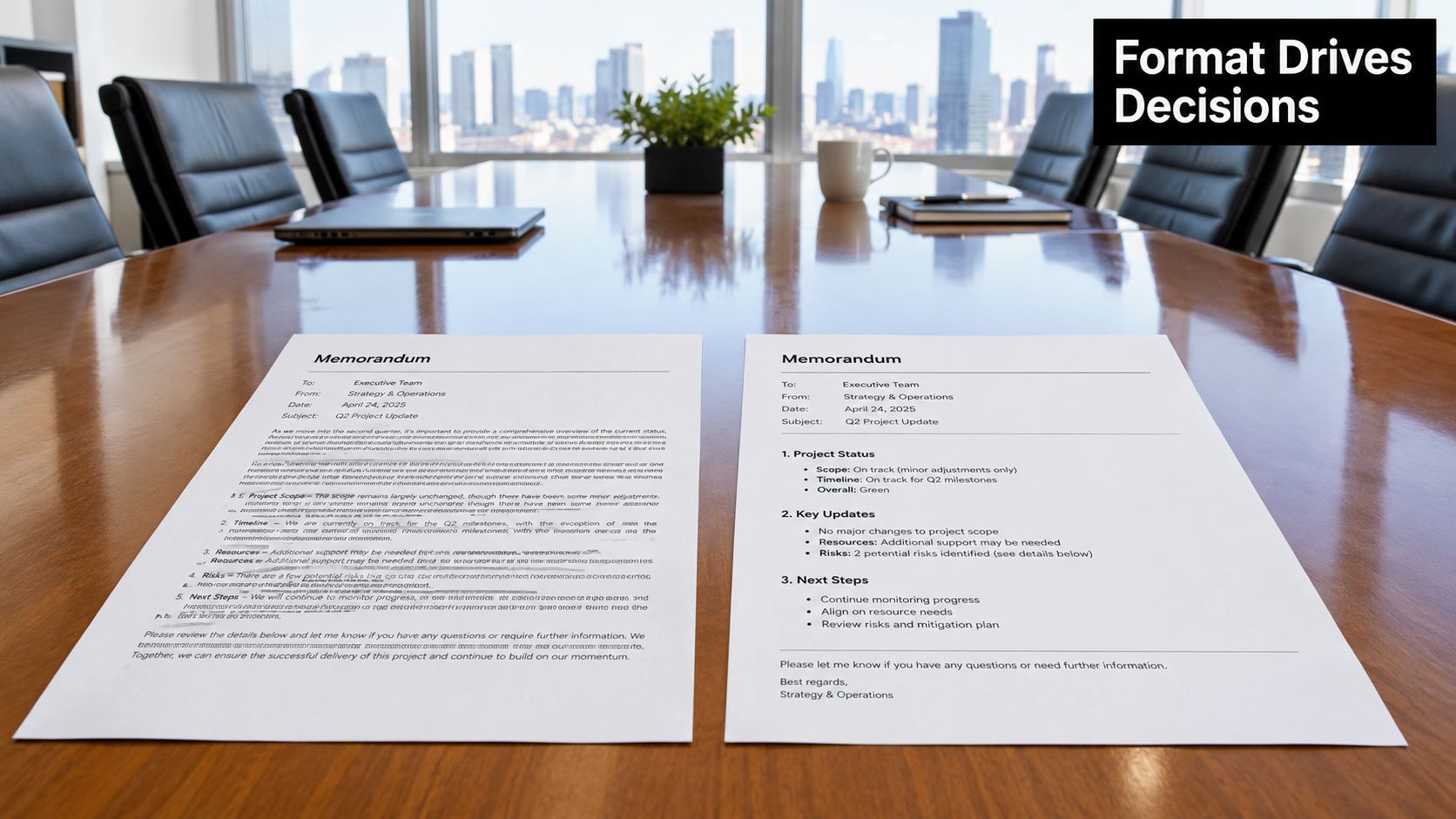
Now the after version. The title uses Heading 1, a Recommendation section under Heading 2 comes first, and the figures move into a three-row table with a total-cost column. Line spacing is set to 1.15, the header carries the version and date, and page numbers sit in the footer. Nothing in the argument changed. Only the path to it did.
Before and after a board memo
Element | Before | After |
|---|---|---|
Title | Bold 16-point text | Heading 1 style |
Decision location | Fourth paragraph | Recommendation under Heading 2, placed first |
Figures | Inline sentences | Three-row table with a total-cost column |
Line spacing | Unset defaults | 1.15, set through paragraph styles |
Header and footer | None | Header with version and date, footer with page numbers |
The Payoff in Longer Documents
Heading styles compound in value as documents grow. Microsoft's guidance on adding headings in Word notes that heading styles support building a table of contents, reorganizing a document, and changing its design. In an 80-page operating manual, Heading 1 for chapters and Heading 2 for procedures generates the contents page automatically, and when a procedure moves from chapter 3 to chapter 2, numbering and page references update after a refresh.
The same thinking applies across everyday professional work, much like the consistency you'd build with professional email templates for recurring messages.
- Travel itinerary: Organized by day under clear headings, with departure times in bold so they're findable at a glance in an airport.
- Board pre-read: An executive summary on page one, with supporting detail nested beneath it for readers who want depth.
- Expense report: Consistent date and amount columns in a real table, so totals can be checked without re-reading prose.
- Meeting brief: Separate Agenda and Decisions headings, so attendees leave knowing what was settled.
- Client proposal: Built from a saved template of styles, so every proposal carries the same hierarchy and signals control.
Common Misconceptions About Document Formatting
The first misconception is that formatting is cosmetic. A neatly styled file that buries the decision still fails its reader, and Ohio State's technical communication material on formatting connects headings, emphasis, and lists directly with readability and accessibility rather than appearance. Formatting is how the argument becomes visible.
Second, more design doesn't mean better formatting. Heavy colors, boxed text, and several typefaces overwhelm the hierarchy until everything shouts and nothing guides. One or two emphasis styles, with color reserved for status, usually scan faster.
Practical rule: If every element on the page demands attention, no element is actually guiding it.
Third, a PDF that looks right isn't necessarily structured right, as covered in the file types section above. Fourth, manual bold works only until the document is revised, shared, or exported, after which every fix has to be repeated by hand. Fifth, success is measurable rather than obvious. Track time to locate a section, number of reviewer corrections, accessibility warnings, and version-confusion incidents such as two people editing different copies. Formatting earns its place when it shortens the reader's path to a decision.
Decide Whether to Format It Yourself or Delegate
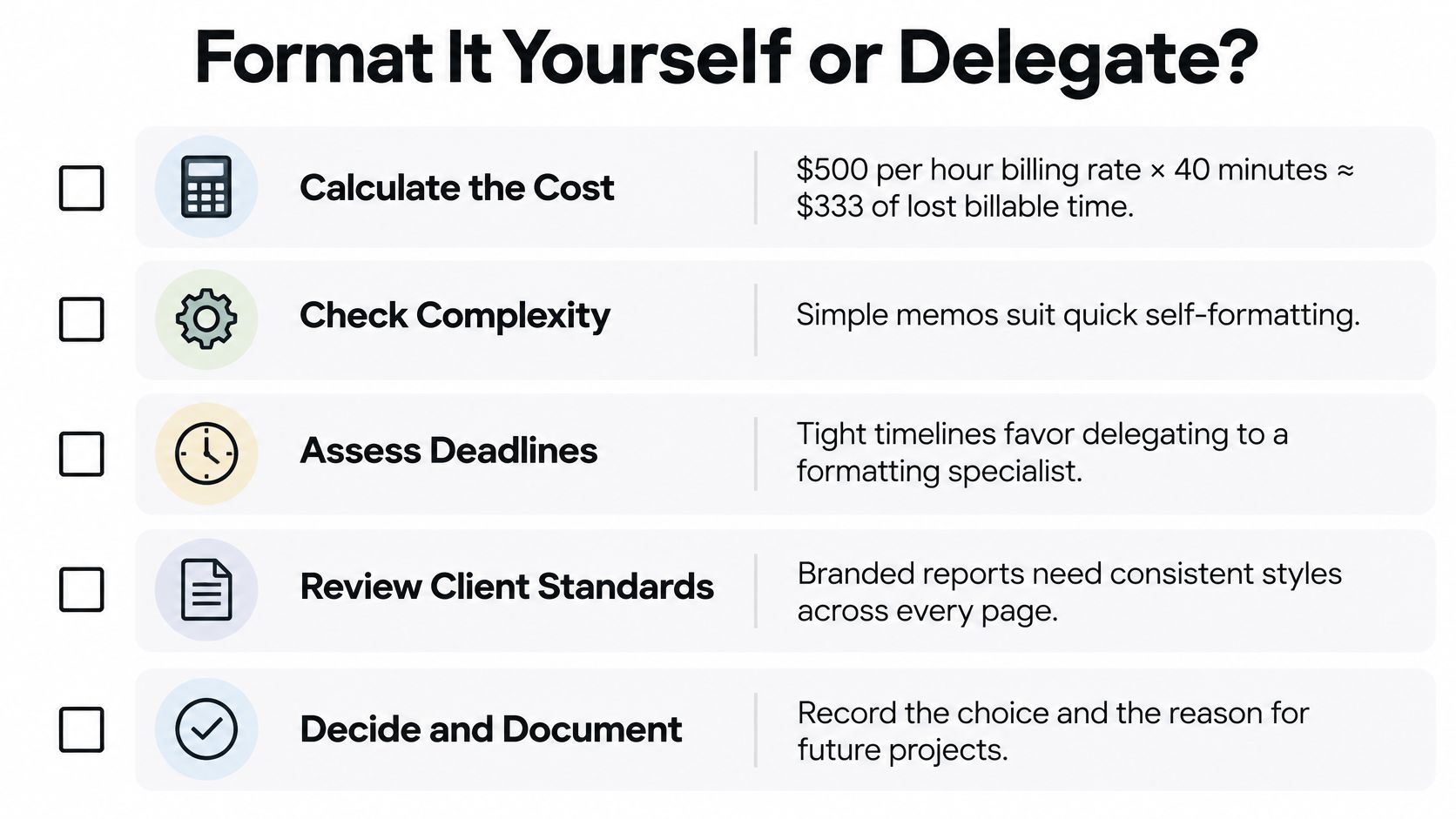
Start with the arithmetic. A consultant billing $500 an hour who spends 40 minutes formatting a client report gives up about $333 of billable time. That illustrative figure reframes formatting as a cost decision, not just a design task.
The checklist below turns that math into a repeatable decision.
When to Keep It and When to Hand It Off
Keep formatting yourself when the document is short, you're the only reader, and the styles already exist. In that case, delegating would take longer than doing it.
Delegate when the same structure recurs every week, when accessible PDFs are required for submission, when several documents must share one house style, or when the hours come out of work only you can do. A document preparation service shows how this work gets packaged and handed off cleanly.
- Recurring structure: Weekly reports and monthly packets reward a template someone else maintains.
- Compliance requirements: Tagged, checked PDFs need the export and verification steps done every time, without shortcuts.
- Shared house style: Multiple authors need one standard applied consistently across files.
An Approved Lux Assistant team can handle document formatting alongside inbox triage, expense tracking, and meeting prep, applying US-based judgment and Proactive Preference Learning so your house style is remembered over time. Lux Solo at $99.99 per month fits an individual, while Lux Circle at $299.00 per month covers up to 4 people on one account, with requests by call, text, or email through Triple-channel access.
Make the handoff work from day one. Write a one-page house style sheet covering body font, heading levels, export settings, and file naming, and share it at onboarding. The first deliverable should already match your standard, and each one after it should need less correction than the last.
If recurring reports, proposals, and meeting packets are eating hours you should spend on client work, Approved Lux can take document formatting, inbox triage, expense tracking, and meeting prep off your plate with a US-based Assistant team you reach by call, text, or email. Share your house style sheet once and let Proactive Preference Learning tighten every deliverable that follows. Visit Approved Lux Personal Assistant to choose Lux Solo or Lux Circle and reclaim that time this week.
Updated