Inbox Is Full: Triage Before You Delete
If your inbox is full, test send and receive first, then triage by deadline, owner, and consequence.
12 min read
Inbox is full is either a storage block or a decision backlog, and the first move is to test whether new mail can still arrive before you delete anything. In 2021, business and consumer email already reached 319.6 billion messages a day, with a forecast of 376.4 billion by the end of 2025.
The Radicati Group email statistics report also put worldwide email users at 4.147 billion in 2021 and 4.594 billion in 2025. That volume is why the most popular advice, delete until the screen looks calm, fails so often. A purge can shrink a list and still leave a bounced client note, a camp deadline, or a thread nobody owns.
Send one message to yourself from another account, then send a one-line reply. If both directions work, bytes aren't the failure. If either direction fails, stop touching the visible Inbox and look at storage.
What a Full Inbox Usually Means
A crowded screen is not one problem. The delivery test is the split. If a new message bounces, or your reply won't leave, you're in a quota event. Deleting what's on screen may free nothing, because the bytes often sit in trash, attachments, or another service on the same account. If mail still lands, the pain is unread decisions, and an empty-looking folder isn't the goal.
Mental Floss, reporting a 2025 All About Cookies survey of 1,000 U.S. adults, found an average of 1,044 unread emails, while 32% reported having zero unread emails. A huge pile and a cleared one can both be workable or miserable. The count isn't a verdict.
ZeroBounce found in 2025 that 23% of 1,000 surveyed American workers said as few as 10 unread emails could make them feel anxious or overwhelmed. That's decision load. Chasing a zero count won't fix it.
Match the row, then stop
What you see | Usual failure | First action |
|---|---|---|
Cannot send or receive; mail bounces | Mailbox or shared storage quota | Audit storage across mail, trash, files, and photos before deleting Inbox mail |
Mail still arrives; hundreds or thousands unread | Decision backlog | One triage pass: act, delegate, defer, or archive |
Mail flows and the count is manageable, but focus keeps breaking | Interruption habit | Two or three scheduled processing windows |
Work, school, vendor, and family mail in one account | No owner for follow-ups | Name the next action and one owner per thread |
Anxiety even at about 10 unread messages | Decision load, not volume | Classify by consequence; do not chase an empty inbox |
Walk the rows in order and stop at the first match.
Cannot send or receive. Shared or mailbox storage is full. Audit size before you touch the Inbox.
Mail arrives, hundreds sit unread. That's a backlog. Run one triage pass and leave the archive alone.
The count is manageable, but focus keeps breaking. That's an interruption habit. Set check windows.
Work, school, vendor, and family mail share one account. That's an ownership gap. Name a follow-up owner on each live thread.
Anxiety shows up at a small unread count. Classify by what happens if the message waits. Don't chase an empty inbox. If pings are the main drain, cognitive load management is the skill that protects the next work block.
Practical rule: Mark one row and do only that first action today. A second project, started before the first is done, is how the pile wins the afternoon.
Free the Mailbox When Storage Is the Block
Use this only after the delivery test failed. A blocked mailbox is a size enforcement, not a filing failure.
Microsoft documents three separate lines in Exchange. A warning level tells you the box is getting close. A prohibit send level stops outbound mail. A prohibit send and receive level stops both directions. Once that last line is crossed, new inbound messages are rejected and returned to senders as nondelivery reports, and outbound mail stays blocked until enough storage is freed, as Microsoft's mailbox storage quotas guidance explains.
Many Microsoft 365 plans use a 100 GB mailbox ceiling, with sending blocked at 99 GB and both sending and receiving blocked at 100 GB. Some lower-tier plans are much smaller, so don't assume you have a hundred gigabytes of room.
What each stage still allows
Stage | Still works | Blocked |
|---|---|---|
Warning level (under 99 GB on a 100 GB plan) | Sending and receiving | Nothing yet; set an alert and free space now |
Prohibit send (about 99 GB on a 100 GB plan) | Receiving | Outbound mail blocked until space is freed |
Prohibit send and receive (100 GB) | Neither | Inbound returns as nondelivery reports; outbound blocked |
Google accounts can share one pool across Gmail, Drive, and Photos. Google's storage guidance states that Gmail messages and attachments, including Spam and Trash, count toward that pool. An empty-looking Inbox can still be over quota because of a photo backup or a large Drive file. Being over quota is an availability failure. A flight change or a client reply can bounce while you're deleting newsletters.
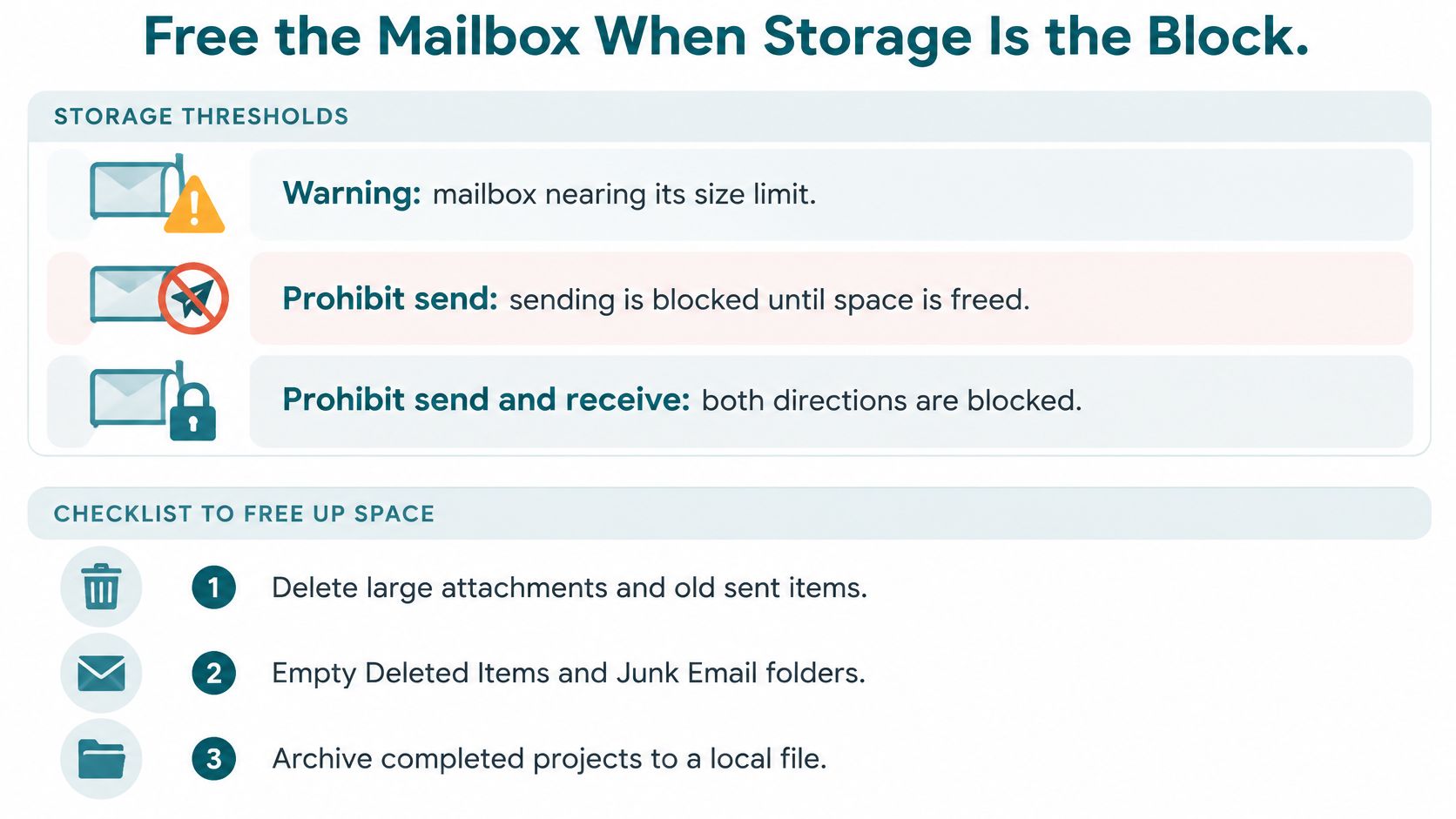
- Check total storage, not the Inbox count. Open the account storage page and note mail, files, and photos separately.
- Sort mail by attachment size and save records you must keep outside the mailbox. A local copy matters before anything is permanent. These Outlook backup steps for Mac from Nerds 2 You Edmonton walk through saving Outlook mail on a Mac so a cleanup doesn't become the only copy.
- Inspect the largest cloud files and photo backups if the account shares storage. One video backup can outweigh a year of short messages.
- Empty Spam and Trash only after retention needs are clear. Deleted items can keep consuming space until they're permanently removed.
- Confirm send and receive work again. Send the test message a second time.
- Set a storage alert and a home for new large attachments so the ceiling doesn't return next month. Put contracts and decks in a named drive folder, not in Sent.
Microsoft community guidance on a full storage account notes that service recovery can take 24–48 hours after cleanup. Don't promise that deleting old mail is safe for business records. If a retention rule or legal hold may apply, pause and ask the administrator before permanent deletion.
Triage the Pile by Consequence
Deleting more mail is often the wrong first move. If the mailbox can still send and receive, the problem is usually the unread pile: messages lack a clear priority or owner. Treat the inbox as an intake desk, where each message needs a destination. Start with the newest 50 to 100 messages, or the last seven days if the backlog is older. Leave the archive alone.
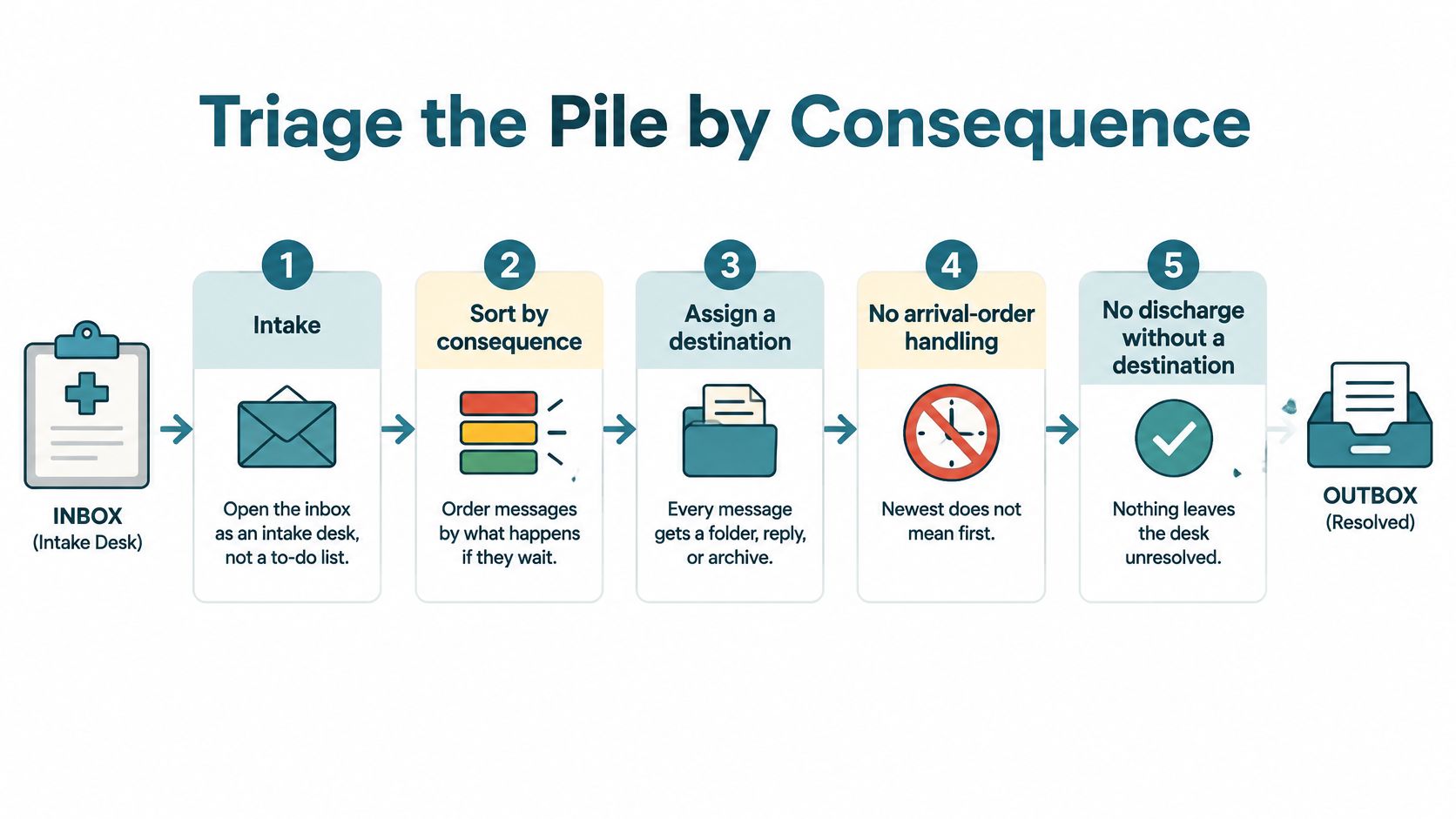
A field study of 40 information workers over 12 workdays found that more daily time on email was associated with lower perceived productivity and higher measured stress. The study also found different productivity patterns between people who interrupted themselves to check email and those who relied on notifications. Batching was associated with higher rated productivity as email time grew. The practical takeaway: classify messages first, then draft replies.
One label, then a destination
- Scan by sender and date. Look for deadlines and risks before newsletters.
- Give each message one label: act, delegate, defer, or archive. Avoid reopening it just to change categories.
- Handle same-day risks, payments, and replies only you can make. Limit quick actions to two minutes; otherwise, park a draft and keep sorting.
- Delegate research, scheduling, vendor follow-ups, or drafts. Include the deadline and the decision you still need to make.
- Move deferred work to a task list with a due date. Then leave the thread; an inbox is a poor reminder.
- Archive or unsubscribe from newsletters and receipts once any needed record has a clear home.
- Stop when the sorting window ends. A pass you can resume beats a late-night cleanup that leaves tomorrow's commitments at risk.
Speed alone is a poor measure of good triage. An LSE Business Review summary of enterprise email timing reports median reply times under one hour for messages sent in the morning and afternoon, compared with more than seven hours for evening and night mail. The same research reports roughly 70 email interruptions a day for knowledge workers and that 35% check email every 15 minutes. A quick reply is not useful if the wrong person owns the next step.
A recruiter's inbox might contain a candidate withdrawal, a hiring-manager question, and several tool promotions. The withdrawal needs same-day attention. The hiring question can be given two options and a this-week date. Promotions do not become tasks just because they are unread. If the team is assessing recruiting software, it can compare AI tools for recruiters separately from inbox triage. For a broader account of who reads, drafts, and sends, see what email management covers.
Who owes the next move
Class | Timing | Move | Owner |
|---|---|---|---|
Flight cancellation, client outage, school emergency, failed payment | Same day | Answer or escalate now | You |
Appointment, registration, vendor choice | This week | Extract the date and two options | Delegate booking; you make the decision |
Receipt, FYI, completed confirmation | No reply owed | Save the record and archive | Shared record; no chaser |
Newsletter, promotion, automated notice | No action needed | Unsubscribe or filter | Rules, not a person |
A flight cancellation belongs in the immediate queue. A vendor comparison can be summarized with two options for the next work block. A receipt needs a filing location, not a reply. A promotion needs a filter, not a task.
Close the pass with four lines: acted, waiting on someone, dated tasks, noise removed. Those lines show what still has an owner and what could become a missed commitment. The unread count does not.
This short walkthrough shows the same process in one sitting: classify first, draft second.
Batch Checks Without Missing Emergencies
Email behaves like an interruption system, not a quiet list you visit when you're ready.
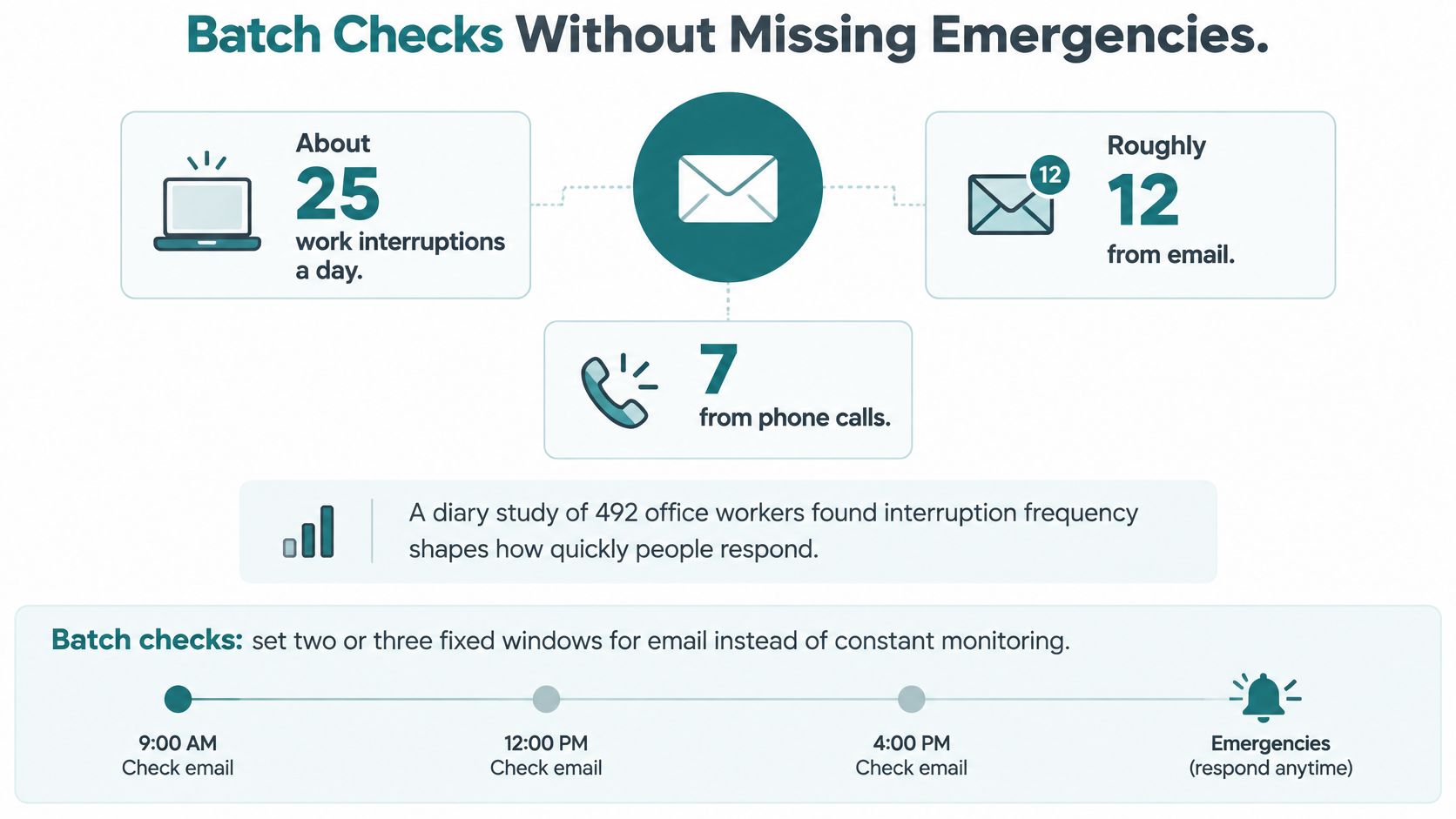
A diary study of 492 office workers in Germany found an average of 25 work interruptions in a day, including about 12 from email and 7 from phone calls. Interruption frequency predicted perceived overload, which predicted a heavier subjective workload.
The 2025 Microsoft Work Trend Index reported that employees using Microsoft 365 were interrupted by a meeting, email, or notification about every two minutes during core hours, about 275 interruptions a day. Related reporting put the average employee at 117 emails and 153 Teams messages daily, and 40% of employees checked email before 6 a.m.
Batching is the countermeasure, not silence. Set two or three windows, such as late morning and midafternoon. Leave notifications off outside them except a short allow-list: a child's school, a client outage alias, and travel alerts.
What the window is for
- Inside the window, classify only. Draft replies in a later block so you don't reconsider every open loop while you're still sorting.
- Outside the window, emergencies use the allow-list or a phone call, not a reflex refresh.
- Route research, scheduling, and follow-up into a task queue instead of reopening the inbox between meetings.
People who check by self-interruption don't have the same day as people who live on notifications. Batching lined up with higher rated productivity as time in email grew, which is a reason to keep the windows even when the pile feels loud. For how to hold a conversation that doesn't demand an instant reply, asynchronous communication is the matching habit.
Write tomorrow's two window times and the three senders allowed to break them. Run that for one week before you add a third window.
Three Inboxes That Look the Same
A full inbox can hide three different problems: a family commitment without a clear owner, a decision only the founder can make, or a time-sensitive travel change buried under routine mail. The next move depends on whose commitment could be missed.
The parent who is the household reminder
A dual-career parent opens mail on Tuesday night. Camp registration sits under a pediatric portal note and a class party thread. A 2024 survey of more than 2,000 parents, reported by USA Today, found parents spend over 30 hours per week planning family schedules and household tasks, and 61% said that mental load had reduced time with a partner. Separate survey data on household labor points in the same direction: scheduling, care, and other work that takes mental effort still falls disproportionately on mothers.
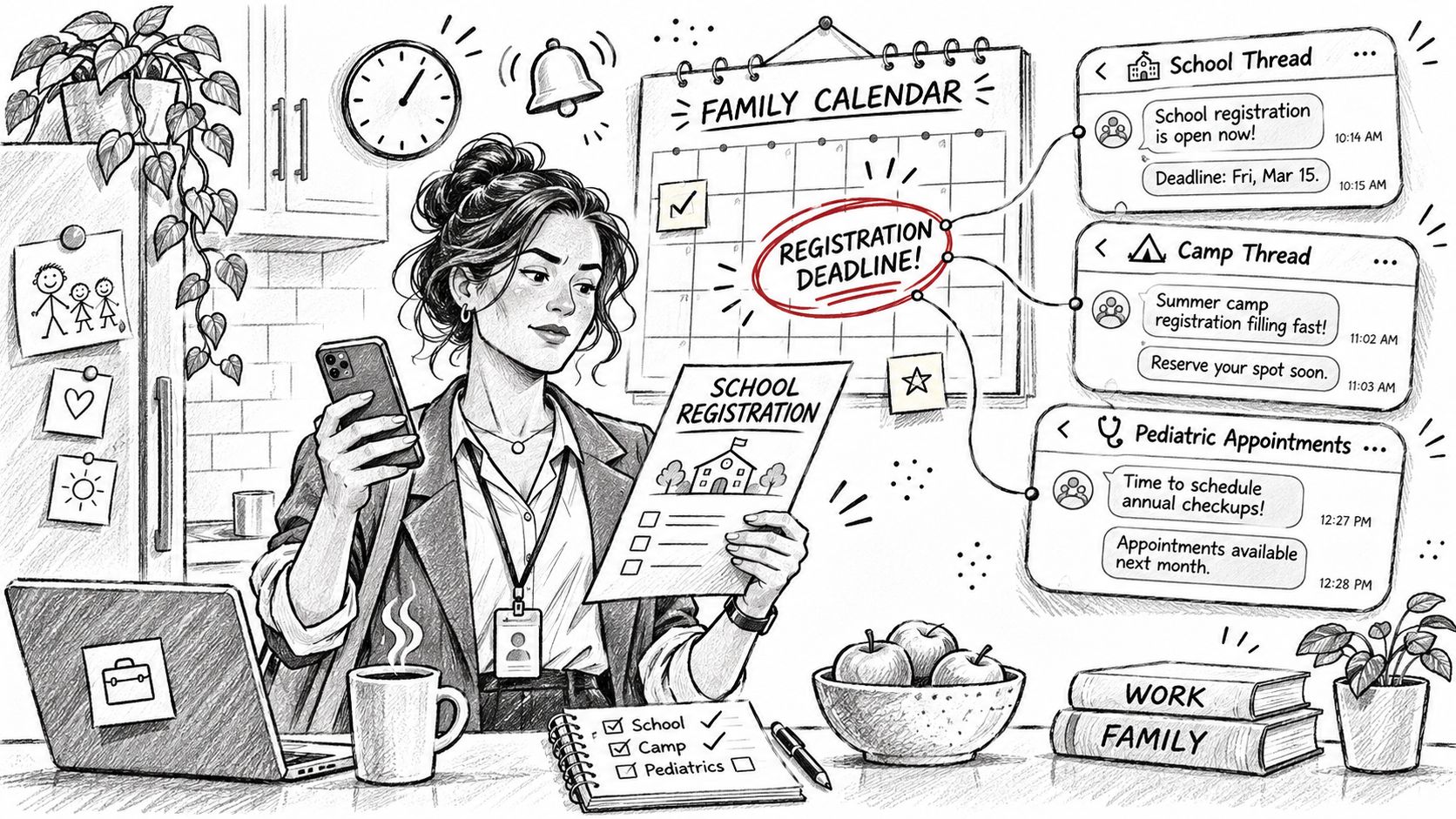
On Tuesday, turn the camp email into a dated task with one named parent and a cutoff two days away. Give the other adult the party supply list. Copy the newsletter's one useful date to the shared calendar, then archive it. The aim is clear ownership, so registration does not miss its window because everyone assumed someone else had seen it.
The founder whose afternoon is the product
A founder has a heavy daily pile plus chat, and only 25 minutes for email. Answer the investor question directly because only the founder can make that commitment. Delegate the travel hold with the dates and a backup city. Defer the vendor comparison by putting two options in a task, rather than leaving the thread to reread tomorrow.
That short pass protects the afternoon for work only the founder can do. The cost of poor triage is specific: a late investor reply or an expired hold.
The traveler whose real message arrives at midnight
A cancellation note at midnight carries same-day risk. A hotel newsletter does not. Put rebooking and the first backup flight ahead of morning, and filter the promotion so it does not appear equally urgent at 6 a.m. A business-hours travel desk may not see the cancellation in time. Waiting can mean losing the seat.
Which week resembles yours? Choose the commitment that slipped last month, then decide who owns the next one.
Decide What You Still Touch
A full inbox does not mean you should delete more. First separate the storage problem from the ownership problem: a blocked mailbox needs space, while a flowing mailbox with a large unread pile needs clearer decisions about who handles each commitment.
Keep decisions involving spending, promises, or reputational risk. Hand off the coordination around them: extracting dates from school and vendor messages, chasing holds, drafting replies for you to send, formatting documents, and tracking deadlines. That is the second shift an inbox can create.
When coordination regularly takes 8 to 15 hours a week, or household logistics feel like a part-time job, help may return hours for focused work and reduce the chance of a missed camp window or delayed rebooking. The trade-off is straightforward: someone else can carry the follow-up, while you retain decisions that commit money or time.
Approved Lux provides that operational support without the overhead of hiring an employee. A US-based Assistant team is available 24/7. Triple-channel access means calls, texts, and emails are monitored at equal priority. The team works alongside your email and calendar, never inside those accounts, which remain under your control. Through Proactive Preference Learning, the team adapts to your routines over time.
Lux Solo costs $99.99 a month and covers one person, including travel, scheduling, errands, and research. Lux Circle costs $299.00 a month and covers up to four people, with shared context across the group. For a small firm, email security best practices for SMBs offer a useful baseline for keeping spoofed urgent messages from being mistaken for real commitments.
Measure the result in hours reclaimed and commitments kept. An empty inbox is optional.
Approved Lux Personal Assistant provides 24/7 access to a US-based Assistant team for inbox triage, drafts, scheduling, travel logistics, and deadline reminders, by call, text, or email. Members keep decisions that spend money or set commitments; the team handles coordination that would otherwise take another evening. See how the plans fit a parent, a founder, or a traveler at Approved Lux Personal Assistant.