All Articles
The Journal
How to manage multiple calendars: Master your schedule and reclaim time
February 6, 202620 min readcalendar managementproductivity tips
Learn how to manage multiple calendars with practical tips to sync work, personal, and family plans - boost productivity and reclaim your time.

Let's be honest, juggling multiple calendars is a special kind of nightmare. You've got your work schedule in Outlook, your personal life in a Google Calendar, and maybe even a shared family calendar in iCal. It's digital chaos.
This isn't just a minor annoyance; it's a productivity killer that causes real-world problems. Every time you switch between apps, you're forcing your brain to reset, creating a constant mental drag that drains your focus and energy.
The Real-World Fallout of Calendar Chaos
This scattered system is a breeding ground for embarrassing and costly mistakes. Picture this: you're a founder trying to balance investor meetings with a long-planned family trip and your own personal appointments. Outlook says you're free Tuesday afternoon, so you quickly accept a promising pitch meeting.
The problem? You completely forgot about the non-negotiable dental appointment sitting right there on your personal Google Calendar. Now you're stuck. Do you cancel on a potential investor or push off important personal care? It's a lose-lose situation created by a disorganized schedule.
More Than Just a Scheduling Headache
This isn't some far-fetched scenario. It's a daily reality for countless busy professionals, and the consequences can be surprisingly severe, impacting both your work and personal life.
The fallout from this calendar mess often looks like this:
- Missed Appointments: Forgetting a critical client call or a child's soccer game because it was logged in the "wrong" calendar.
- Reputational Damage: Looking disorganized or unreliable when you constantly have to reschedule or show up flustered and late.
- Lost Opportunities: Missing out on a key networking event simply because your true availability was buried across different platforms.
- Constant Stress: That nagging, low-grade anxiety that you've forgotten something important. It's always there.
This isn't a niche problem. The global calendar app market was valued at a staggering $5.71 billion in 2024 and is expected to hit over $14 billion by 2033. That explosive growth proves one thing: people are desperate for a better way to manage their time.
If you want to dig deeper, you can find more insights on the growing calendar app market here. But for now, let's focus on building the practical, unified solution you actually need.
Building Your Centralized Calendar Command Center
If you're going to reclaim your schedule, the first and most critical move is creating a single source of truth. This means picking one primary calendar to act as your command center and then systematically plugging everything else into it. The goal is to create one unified view that stops the constant app-switching, saving you from the mental drain and silly mistakes that come from a fragmented system.
We're not just trying to see all our appointments in one place. We're building a reliable hub where you can confidently manage every moving part of your life—work commitments, family events, personal time—without ever losing context or control.
This is the typical journey from juggling separate calendars to feeling completely overwhelmed. It's a familiar story for many of us.
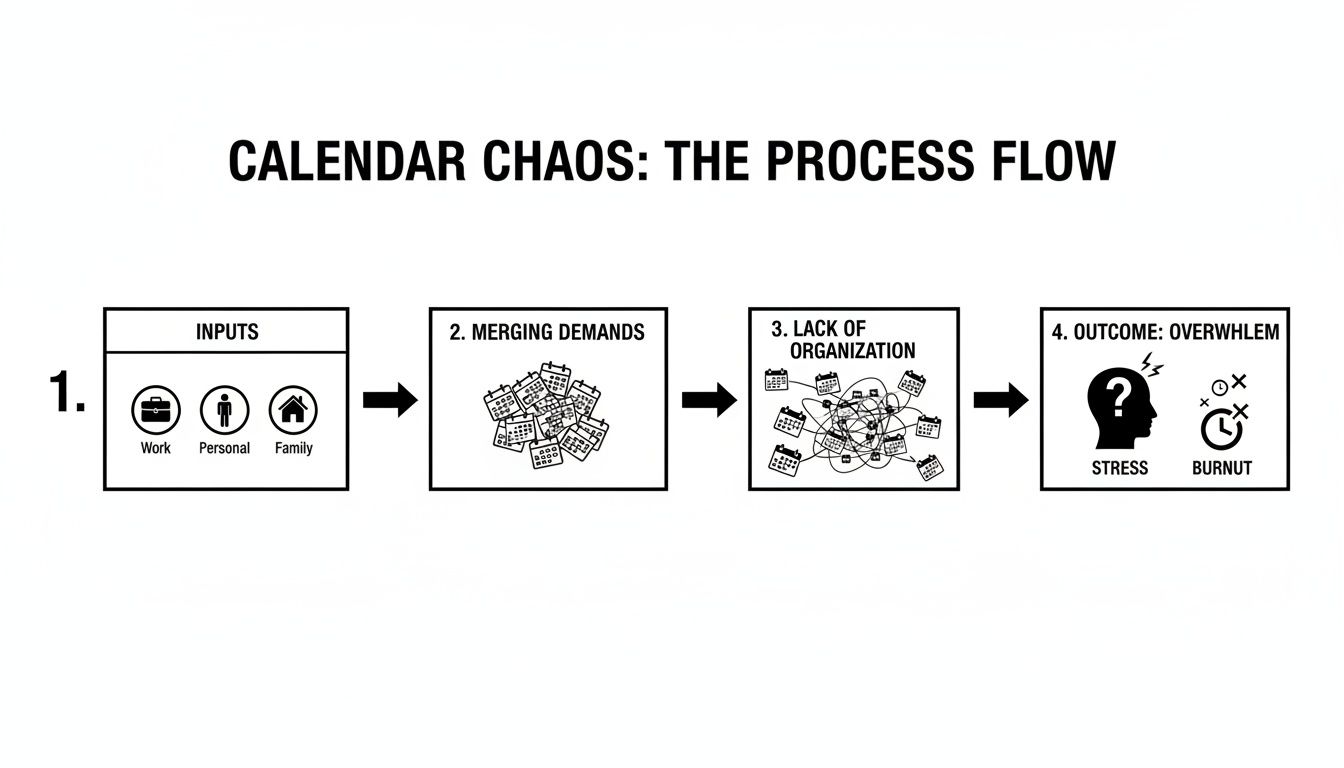
This spiral shows exactly how disjointed systems lead straight to stress and disorganization. That’s why building a command center isn't a "nice to have," it's essential.
Choosing Your Primary Platform
Your central calendar needs to be the one you find most intuitive and powerful for your daily life. While a lot of this comes down to personal preference, some platforms are just flat-out better at connecting with everything else.
For most busy professionals I've worked with, Google Calendar is the undisputed champion. Its robust API makes syncing with third-party tools and other major platforms like Microsoft Outlook and Apple Calendar incredibly straightforward. That flexibility is the secret sauce for building a truly unified system that actually works.
Of course, Microsoft Outlook is a strong contender, especially if your professional life lives inside the Microsoft ecosystem. Likewise, Apple Calendar is a no-brainer for those who are all-in on Apple devices. But if you want maximum compatibility across a mix of services and hardware, Google usually wins.
Your choice of a primary calendar platform is the foundation of your entire system. It needs to be powerful, flexible, and, most importantly, work for you. Here’s a quick look at the big three to help you decide.
Choosing Your Primary Calendar Platform
| Feature | Google Calendar | Microsoft Outlook Calendar | Apple Calendar |
|---|---|---|---|
| Best For | Ultimate cross-platform compatibility and integrations. | Deep integration with the Microsoft 365 ecosystem. | Seamless experience for users exclusively on Apple devices. |
| Integration Strength | Excellent. Huge third-party support and robust API. | Good. Works great within Microsoft, but can be less flexible with outside tools. | Fair. Best within the Apple ecosystem; can be clunky with non-Apple services. |
| User Interface | Clean, web-focused, and highly intuitive. | More traditional, corporate feel. Can feel dense. | Minimalist and clean, prioritizes simplicity. |
| Collaboration | Top-tier sharing, scheduling, and team features. | Strong for corporate teams using Exchange/Microsoft 365. | Basic and effective for family or small group sharing. |
Ultimately, Google Calendar often provides the most versatile core for a command center, but if your work life is dominated by Outlook, it might be the more practical choice.
The Practical Steps to Consolidation
Once you've picked your home base, it's time to connect your other accounts. This isn't about importing everything and creating a mess. Instead, you'll be "subscribing" to your secondary calendars so they appear as distinct, read-only layers in your main view.
Here’s a common scenario and how to handle it:
- Your Work Calendar (Outlook): Go into your Outlook settings and find the "Share calendar" option. You'll want to generate a private link (it's usually called an ICS or iCal link). Copy that link and, in your primary Google Calendar, use the "Add from URL" feature to subscribe to it. This creates a one-way sync where your work events show up in your command center.
- The Family Calendar (Apple Calendar): The process is almost identical. In your Apple Calendar settings, make the calendar public (this just means it has a shareable link; the URL itself is private and unguessable). Copy the subscription link and paste it into Google Calendar under "Add other calendars."
- Other Personal Calendars: For any other calendars you use for side projects, hobbies, or fitness classes, follow the same sharing process. Find the subscription link and add it to your primary hub.
This method is brilliant because you see everything in one place, but you still manage each event from its original app. No confusion, no accidental edits.
Why Integration Is Non-Negotiable
For busy founders and frequent travelers, juggling Outlook for work, Google for personal, and Apple Calendar for family means constant context-switching. That mental whiplash is scientifically linked to a staggering 40% drop in productivity. True calendar management begins with integration, and this is where robust calendar integrations become the backbone of a functional, stress-free system.
Considering Professional Assistance
Let's be honest—setting all of this up can feel like a chore, especially when you're digging through different platform settings. This is exactly where a dedicated personal assistant or concierge service like Approved Lux can be a game-changer.
An expert can handle the entire consolidation process for you. They'll make sure all your calendars are synced correctly, permissions are set to protect your privacy, and the whole system is foolproof from day one. You can get a better sense of what this looks like by reading our guide on the https://www.approvedexperiences.com/blog/tasks-of-an-executive-assistant. It lets you get all the benefits of a unified calendar without sinking your own valuable time into the technical setup.
Mastering Your Color-Coding System
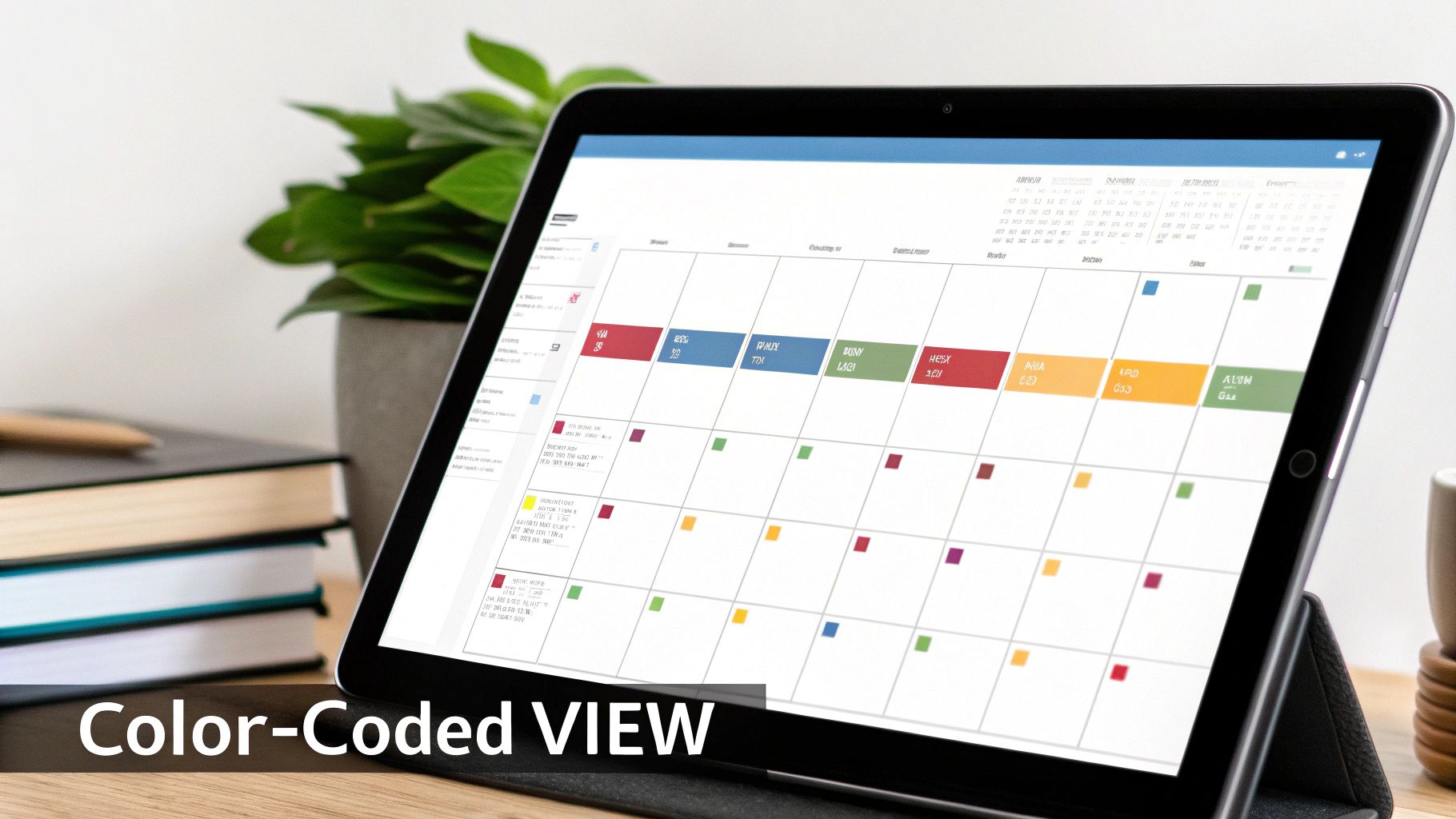
Dumping all your calendars into one unified view is a great first step, but it often creates a new kind of problem: a chaotic wall of text that’s impossible to decipher at a glance. The real magic happens when you introduce a smart color-coding system. This is what transforms your calendar from a passive record of appointments into an active tool for making better decisions.
This isn't just about picking pretty colors. It's about creating a visual language that tells you the story of your week in an instant. A good system lets you see exactly where your time is going without having to read a single event title.
A Practical Color-Coding Framework
The secret to making this work is consistency. Start by assigning a specific color to each major "bucket" of your life. The goal is to build such a strong mental association that you instantly know what a block of color means. Keep the categories broad and distinct.
Here's a simple, field-tested framework I recommend to my clients:
- 🔵 Blue for Professional Life: This is for anything and everything related to your main job. Team meetings, client calls, project deadlines, focused work blocks—if it's for work, it's blue. A sea of blue on your calendar is an immediate signal of a work-heavy week.
- 🟢 Green for Personal Growth & Projects: Think of green as time you're investing in yourself. This could be gym sessions, an online course, working on that side hustle, or even dedicated deep work on a passion project.
- 🔴 Red for Non-Negotiable Events: Red is your "do not touch" color. It’s for the mission-critical, immovable appointments. We’re talking doctor’s visits, your kid’s recital, a wedding, or a flight you absolutely cannot miss. Red should practically scream, "Protect this time!"
- 🟡 Yellow for Tentative or Flexible Plans: Not everything is set in stone. Use yellow for potential meetings, casual hangouts that might shift, or anything that's still in the "maybe" phase. This color is your visual cue for "this has wiggle room."
With this system, you can immediately diagnose your schedule. Too much blue? You might be heading for burnout. Not enough green? Your personal goals might be slipping.
Establishing Your Rules of Engagement
Just having colors isn’t enough. To truly take command of your schedule, you need to set clear "rules of engagement" for each color. These rules are your personal policies for how you manage your time, helping you decide what gets on your calendar in the first place.
By defining clear rules for each calendar category, you shift from reactively managing appointments to proactively shaping your time. It’s the difference between having a schedule and commanding one.
Think of it as setting the terms and conditions for your own attention. This is a fundamental shift that’s essential for managing multiple calendars without feeling like you're constantly fighting fires.
Practical Rules for Each Color
Let's make this tangible. Here are some examples of rules you can set to bring your color-coded system to life and keep you in the driver's seat:
- Rule for Blue (Work): A new work meeting only gets accepted if it has a clear agenda and aligns with my top 3 weekly priorities. No agenda? The request gets an immediate "can you send an agenda?" reply before I even consider it.
- Rule for Green (Personal): My personal growth blocks (like gym time) are treated with the same respect as a meeting with my most important client. They can be moved, but never deleted. If I have to reschedule, it must be moved to another open slot within the same week.
- Rule for Red (Non-Negotiable): I enforce a mandatory 30-minute buffer zone before and after every red event. Nothing else gets scheduled in this buffer. This protects my travel time and ensures I'm not frantically rushing from one critical thing to the next.
- Rule for Yellow (Tentative): Every yellow event must have a "confirm by" date. If I don't have a firm "yes" from the other party by that date, the event is automatically deleted. The slot is freed up. No more holding my time hostage for a "maybe."
These aren't just suggestions; they are boundaries. They turn your calendar into a powerful gatekeeper that ensures every single item on there has truly earned its place.
Advanced Tactics for Time Zones and Focus Blocks
Once you’ve wrestled all your calendars into one unified, color-coded system, you’re ready for the next level. This is where we tackle the two biggest schedule-wreckers for busy people: juggling international travel and actually carving out time for deep, focused work.
Getting these two things right is what elevates your calendar from a simple appointment book into a strategic weapon for productivity.
Navigating Different Time Zones
Anyone who travels for work or collaborates with teams across the globe knows the pain of a time zone mix-up. Showing up an hour late to a crucial meeting because of a simple calculation error isn't just embarrassing; it can damage your reputation and even cost you business.
Thankfully, the fix is built right into your calendar app. You just have to turn it on. The trick is to display multiple time zones right on your main calendar view. It’s a small change that brings immediate clarity, killing the guesswork and frantic mental math before every call.
Here’s the quick-and-dirty setup on the most common platforms:
- Google Calendar: Jump into Settings > Time zone and just check the box for "Display secondary time zone." If you're in PST but your main team is in New York, set that secondary zone to EST. Done.
- Microsoft Outlook: Go to File > Options > Calendar, then find the Time zones section. You can add a second or even a third time zone here, giving them custom labels like "Home" or "London Office" for at-a-glance understanding.
This dual-view setup is an absolute game-changer. When you create an event, you can lock in its specific time zone, and your calendar automatically shows everyone the correct time on their end. No more confusion, no more missed connections.
A calendar that doesn't account for time zones is a liability. By setting up secondary time zones, you transform it into a reliable tool for global collaboration, ensuring you're always in the right place at the right time.
For frequent flyers, this isn't optional—it's essential. This is also where a concierge service like Approved Lux can take over, automatically updating your calendar’s primary time zone as you travel and padding your schedule with realistic travel buffers around flights. That means you have protected time for getting to the airport, through security, and settled in before that first big meeting.
Protecting Your Time with Focus Blocks
Beyond travel logistics lies the real battle: protecting your time for deep work. In a world of back-to-back meetings and endless pings, you have to proactively fence off time for uninterrupted focus. This is where focus blocks—what some people call "no-meeting" time—become your most powerful tool.
These aren't just empty spaces on your calendar. They are scheduled, non-negotiable appointments with your most important work.
By blocking out one to three hours for "Focus Time" and coloring it according to your system (maybe Green for personal growth or high-priority projects), you're sending a clear signal to yourself and everyone else that this time is sacred. It's a surprisingly effective way to ensure your biggest priorities get the attention they deserve.
It turns out, this is a common strategy. One recent analysis found that 58% of office workers block out no-meeting time, but that number plummets to just 8% for fully remote workers. This gap shows just how critical a truly unified calendar is—one where your protected time is visible to everyone, no matter where they’re working from. You can discover more insights about modern meeting habits to see how other professionals are adapting.
Communicating Boundaries Effectively
Of course, just blocking the time isn’t always enough. When a colleague sees a generic "Busy" event, they might just try to schedule over it anyway. The key is to be descriptive.
Instead of a vague block, name your focus time with intention:
- "Focus Block: Q4 Strategy Document"
- "Deep Work: Finalize Client Proposal"
- "No Meetings: Project Phoenix Planning"
This tiny tweak makes a huge difference. It communicates the importance of what you're doing and makes people far less likely to interrupt. You’re not just "busy"; you're working on something specific and critical.
If you use a tool like Calendly, it will automatically read these blocks and show you as unavailable to anyone trying to book you. This is another area where a dedicated assistant shines—they can manage your scheduling links and gently reinforce these boundaries for you, letting you stay locked in on the task at hand.
Automating and Delegating Your Calendar
Your calendar is now a clean, unified, color-coded command center. The next step is a game-changer: moving from actively managing your schedule to letting technology and trusted support do the heavy lifting for you. This is how you turn a well-organized calendar into a powerful tool that works in the background, freeing you up for what actually matters.
The first, and easiest, win is to kill the most tedious part of scheduling: the endless email chain of "Does Tuesday at 2 work for you?" This is where automated scheduling tools are non-negotiable.

Embrace Automated Scheduling Tools
Tools like Calendly are brilliant because they solve this one problem perfectly. Instead of manually proposing times, you just send a link. The tool instantly scans your connected calendars—work, personal, family—and shows the other person only the slots that are actually free.
This one simple change has a massive ripple effect:
- It kills double-bookings for good. The tool sees your board meeting, your kid's soccer practice, and your dentist appointment. It won’t offer a time that clashes with any of them.
- It automatically enforces your rules. You can build in your own preferences, like preventing same-day bookings or adding a 15-minute buffer between calls. The tool acts as your personal gatekeeper.
- It makes time zones irrelevant. The scheduling page detects the recipient's location and displays your availability in their local time. No more mental math or mix-ups.
This is also where strategies like calendar blocking—which 58% of employees use to guard their focus time—become supercharged. Your "Deep Work" blocks are now truly protected, because your scheduling tool knows not to offer them up for meetings. For a founder juggling investor calls across continents with family commitments, this level of integration isn't a luxury; it's essential for preventing burnout and costly mistakes.
The Power of True Delegation
While automation handles the mechanics, the ultimate level-up in calendar management is delegation. Handing the keys to a trusted executive assistant or a dedicated service like Approved Lux is the single biggest force multiplier you can have.
This isn't just about asking someone to book a meeting. It’s about entrusting them with the entire operational side of your time.
A skilled assistant doesn't just fill empty slots. They triage requests, push back on low-priority meetings, resolve complex conflicts between stakeholders, and proactively ensure your calendar reflects your biggest goals—not just the loudest demands.
Delegation transforms your calendar from a personal to-do list into a managed asset. When someone else handles the logistics, you're free to focus solely on the substance of your meetings and the goals of your day.
A Practical Delegation Checklist
Of course, handing over your calendar requires a solid foundation of trust and a crystal-clear process. It's not as simple as just sharing a password.
Here's how to delegate your calendar effectively and securely:
- Grant the Right Access Level: In your main calendar's settings, share it with your assistant, but give them "Make changes to events" permission. Crucially, do not grant "Make changes and manage sharing." This lets them schedule for you without giving them the power to alter security settings or share your calendar with others.
- Provide Your 'Rules of Engagement': Walk them through your color-coding system. What makes a meeting "Red" (non-negotiable) versus "Yellow" (tentative)? What's your policy on back-to-back meetings? Give them the playbook.
- Define Your Ideal Week: Don't make them guess. Give them a template of what a perfect week looks like for you—Mondays for deep work, Tuesdays and Thursdays for external calls, Friday afternoons blocked for personal time. This empowers them to make smart decisions on your behalf.
- Establish a Communication Protocol: How should they handle urgent requests or impossible-to-solve conflicts? A dedicated Slack channel? A quick daily sync? Text messages for true emergencies? Setting this up front prevents friction later. Our guide on how to delegate tasks effectively dives deeper into these frameworks.
Remember, delegation extends beyond just calendar tasks. Using tools like speech to text software to dictate notes and follow-ups can also shave hours off your administrative workload. By combining smart automation with strategic delegation, you finally stop just managing calendars and start truly commanding your time.
Even the most meticulously designed calendar system isn't something you can just set up once and walk away from. Think of it as a living document, an operational tool that needs regular attention to stay sharp. Sync errors, phantom duplicate events, and last-minute changes are just part of the game. The trick is having a simple, repeatable process to handle these hiccups without throwing your whole week into chaos.
When a conflict pops up—say, two critical meetings land in the exact same time slot—the worst thing you can do is make a snap decision. Pause and assess. Who has more flexibility? Could one of those meetings be a quick, focused 15-minute call instead of a full hour? A polite, prompt message explaining the double-booking and suggesting an alternative is almost always met with understanding. It shows respect for everyone's time and keeps your professional relationships solid.
The Weekly Calendar Review
If there's one habit that will keep your entire system from falling apart, it's the weekly calendar review. This isn't some deep, strategic planning session. It's a quick, 15-minute sweep to make sure the week ahead is both accurate and realistic. It’s the preventative maintenance that saves you from major headaches later.
Here’s a simple checklist I run through every Friday afternoon to get ahead of the game:
- Confirm a Few Key Appointments: A quick "looking forward to our chat on Tuesday" email can prevent no-shows and miscommunications for your most important meetings.
- Hunt for Duplicates: I quickly scan for any sync errors or accidental copies of events that are just cluttering up the view. Deleting them brings instant clarity.
- Question Recurring Meetings: Take a hard look at those standing appointments. Are they still necessary? A wild 92.4% of professionals admit their recurring meetings have no end dates, leading to endless calendar bloat. You can find more eye-opening data on modern meeting statistics and how they drain productivity.
- Build in Breathing Room: I scan for back-to-back blocks and strategically add 15-minute buffers. That little gap for travel, grabbing a coffee, or just resetting your brain makes a huge difference.
Your weekly review transforms your calendar from a source of stress into a trusted command center. It’s that small investment of time that prevents big problems, giving you a real sense of control over your schedule.
This consistent upkeep is what makes the system work long-term. It ensures the calendar you're looking at is a true reflection of your priorities, not just a messy dumping ground for everyone else's requests.
Of course, this routine is yet another task to manage. This is exactly why so many of our clients choose to hand this off entirely. A skilled executive assistant can run this weekly review for you, flagging conflicts and prepping your schedule so you walk into Monday feeling prepared and in control. If that sounds appealing, our guide on how to hire a personal assistant is a great place to start.
Common Questions & Real-World Solutions
Even the most buttoned-up calendar system will throw a few curveballs your way. Let's tackle some of the practical questions that pop up once you start actively managing your time instead of just letting it happen to you.
How Can I Securely Share My Calendar With an Assistant?
Sharing your calendar doesn't mean handing over the keys to your entire life. The secret is in the permission levels.
When you're bringing an assistant or a service like Approved Lux into the fold, give them permission to "Make changes to events." Critically, you want to avoid granting the higher-level permission to "Make changes and manage sharing."
This is a small but vital distinction. It lets them schedule, accept, and decline appointments for you—the operational stuff—without giving them the power to change security settings or share your calendar with anyone else. They get the access they need, but you always keep ultimate control.
What’s the Best Way to Handle Highly Confidential Events?
We all have them: a sensitive job interview, a private medical appointment, or a surprise party you're planning. You don't need to hide these from your calendar to keep them secret.
Just mark the event as "Private."
Anyone who has access to your calendar will simply see a blocked-off slot, usually labeled "Busy," with zero details. This is the perfect solution. It protects your privacy completely while ensuring that the time is reserved, preventing anyone from trying to book you.
Think of the 'Private' setting as the digital equivalent of a closed-door meeting. The room is occupied, but what's happening inside is confidential.
How Do I Get My Team or Family to Actually Use This System?
Getting buy-in from others isn't about forcing a new tool on them; it's about showing them what's in it for them. You have to sell the benefit.
- For your family: Frame it as the end of accidental double-bookings. "This way, we'll never schedule a client dinner on the same night as the school play again."
- For your team: Highlight the sheer efficiency. "Instead of ten emails to find a meeting time, just grab a slot on my scheduling link. It already knows my focus time and our time zones."
The best way to start is to lead by example. The next time someone asks, "What time works for you?"—don't give them a list of times. Just send them your scheduling link. Once they experience how much easier it makes their life, adoption tends to happen pretty naturally.
Ready to stop juggling schedules and start owning your time? The Approved Lux Personal Assistant service can handle the entire setup, automation, and day-to-day management of your calendar. Let us take care of the details so you can focus on what truly matters.
Visit us to learn how we can help you reclaim your time and clear your head.
Want the wider view?
Ten categories. One report. Every quarter. The Approved List tracks what's rising and what's fading: data-backed signals, not opinions.
Free to join · Delivered by email